
ブラウザでGIFに文字を入れる方法
このページの内容
エディターを開き、GIFを選んで文字を入力します。位置を調整したら書き出します。ファイルは端末内で処理されます。
文字を追加して配置する
- GIFを選ぶか、編集エリアにドラッグ&ドロップします。
- プレビューの下に文字を入力し、「スタイル」でフォント、サイズ、色、角度を調整します。
- 文字をドラッグして移動します。角のハンドルで大きさを変え、丸いハンドルで回転させます。
- 「GIFをダウンロード」を押します。保存したファイルを再生し、全体を通して文字の見え方を確認します。
読みやすさとファイルの上限
明るいフレームと暗いフレームの両方で読みやすい短い文字を使います。上限はGIF1枚、20 MiB、120フレーム、デコード後4,000万ピクセルです。同じ文字がアニメーション全体に表示されます。
サンプルGIFで試す
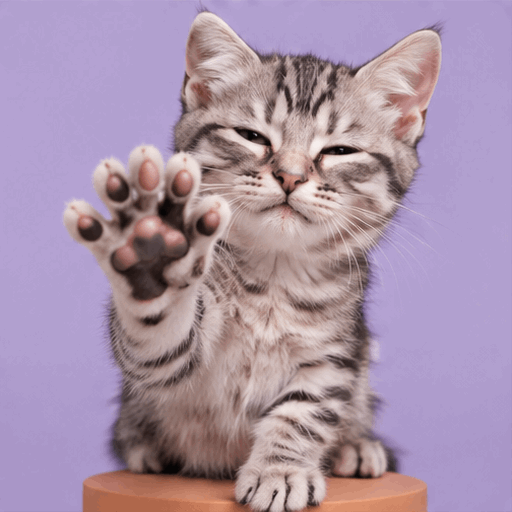
A tiny high five
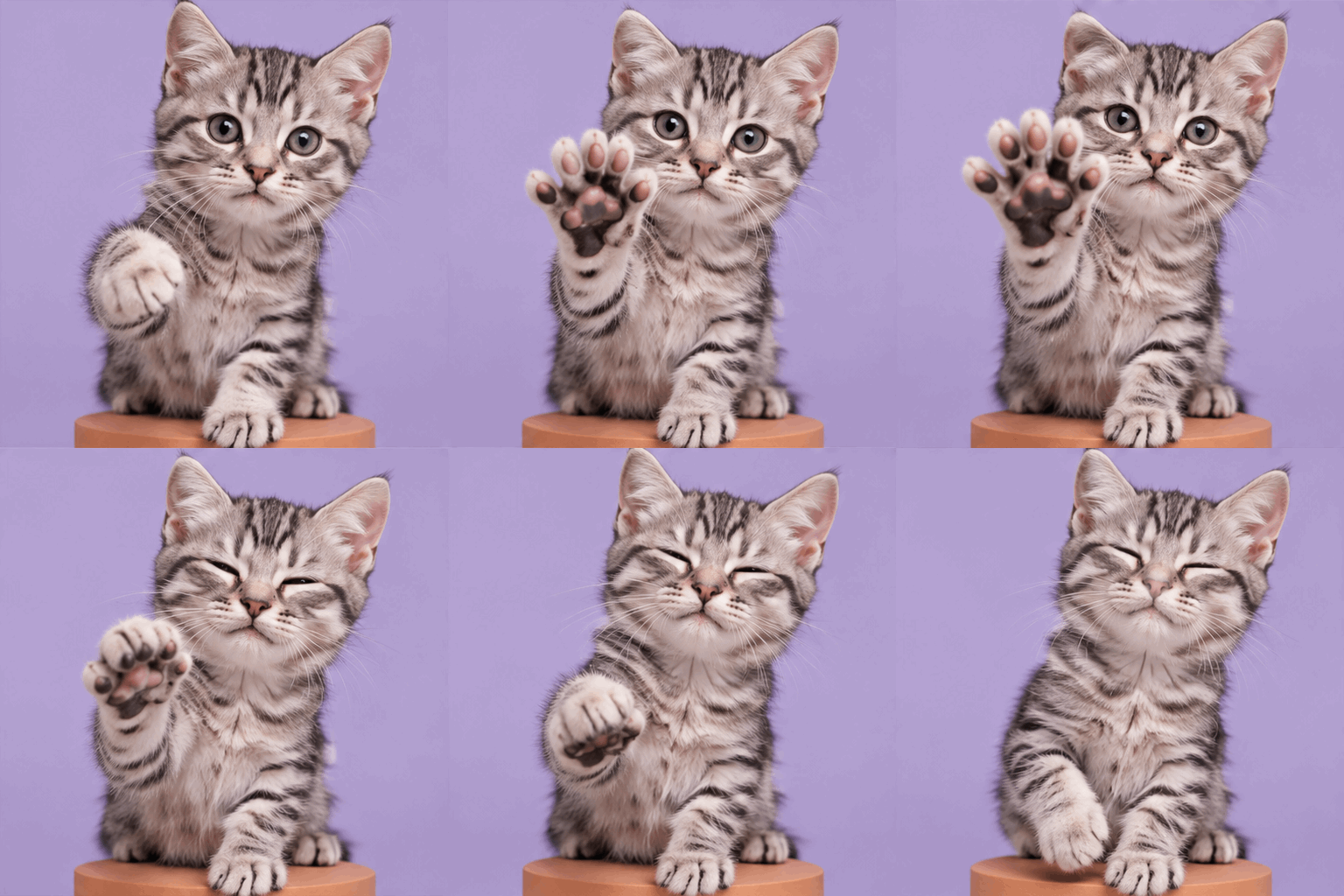
- Auto ratio · 9 frames · 200 ms/frame
プロンプトを見る
Create a photorealistic silver tabby kitten on a terracotta pedestal against a lavender studio background. The kitten raises a front paw toward the viewer, spreads its pink toe beans, gently closes its eyes and draws the paw back. Preserve stable cat anatomy, detailed fur and a playful expression. Keep its ears and paws inside the frame, use a fixed camera and include no text. Portrait 4:5 composition. Output an animated GIF with 9 frames at 200ms per frame, looping continuously.
よくある質問
- 文字入れにクレジットは必要ですか?
- ブラウザ内で無料で編集と書き出しができます。登録やアップロードは不要です。
- GIFの長さは変わりますか?
- 元のフレーム順序と表示時間を保ちます。書き出し時の最短表示時間は1フレームあたり20ミリ秒です。