
AI SVG generators compared: editable graphics, diagrams and real vector files
On this page
For icons and illustrations, choose a generator that exports native vector shapes. For flowcharts and architecture diagrams, choose a workflow that preserves nodes, labels and connections in an editable source. PictoGIF generates static SVG from text or one eligible image; it does not include an on-site path editor or a structured diagram editor.
Start with the kind of editing you need
This guide is written by the PictoGIF team. Official product and documentation pages were checked on November 11, 2026. The comparison covers documented capabilities, not measured quality scores or an independent review.
Changing a vector fill, rewriting a text label and reconnecting a diagram node are different tasks. A file can be editable as shapes while losing the structure needed for convenient diagram revisions.
Compare SVG workflows by the editable source
| Tool or workflow | Best matched task | What you can edit | Boundary to check |
|---|---|---|---|
| PictoGIF | Static icons, logos and illustrations from text or one image | Download native SVG, then edit supported shapes in a compatible editor | No on-site path editor, existing-SVG upload, animated SVG export or semantic diagram source. AI can change small details and lettering. |
| Recraft | Vector icons, logos and illustrations | Official page describes editable SVG layers, recoloring and an integrated canvas workflow | Check the current plan, export conditions and commercial-use rights. This guide does not measure its output quality. |
| AI-written Mermaid + Mermaid renderer | Flowcharts, sequences and technical diagrams | Edit diagram text and render the result; preserve that source for later changes | Mermaid is a diagram renderer, not an image-generation model. An SVG export alone is not a substitute for its source. |
| AI-written SVG code + vector editor | Simple controlled layouts and geometric illustrations | Inspect and modify XML, shapes, text and groups | Requires checking syntax, layout, fonts and external dependencies. Valid XML alone does not prove a good illustration. |
Understand three different levels of editability
| Structure | What it preserves | What it does not guarantee |
|---|---|---|
| Embedded raster image | An SVG container can legally include a PNG or JPEG | The photograph does not become editable vector paths just because its container is SVG. |
| Vector geometry | Paths, shapes, groups and sometimes text | Text may be outlined; groups may not match the objects you expect. |
| Structured diagram source | Node names, relations and diagram definitions in a source format | Moving SVG shapes in a general vector editor does not automatically reconnect arrows. Preserve the original diagram source. |
Inspect a real SVG download
- Download the .svg and open it in a browser and the editor you plan to use.
- Inspect whether the subject uses paths or shapes rather than an embedded raster image. Check the viewBox and any external file references.
- Change the fill of one object. If editable lettering matters, test whether the words remain text or have become outlines.
- For a technical diagram, move one node and inspect its arrows. Save the original diagram source as well as the SVG.
- Check small lettering, holes, thin strokes and the appearance on light and dark backgrounds before publishing.
Download SVG format references and try editing
The following files were hand-authored to demonstrate different SVG structures. They are explicitly not AI-generated samples or evidence of PictoGIF generation quality. Download them to practice changing a color, editing text and moving a diagram box.

Two-color leaf: separate vector paths
Hand-authored SVG practice file, not an AI-generated sample. Change the fill of one leaf without recoloring the other.
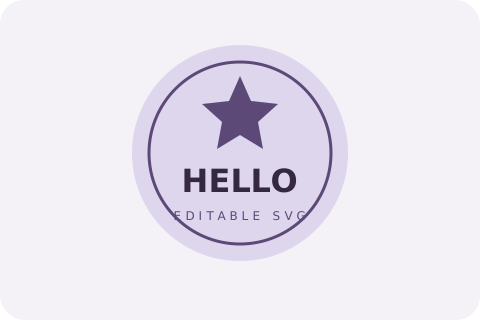
Badge: editable text and shapes
Hand-authored SVG practice file, not an AI-generated sample. The HELLO label remains a text element; its font depends on the editor.
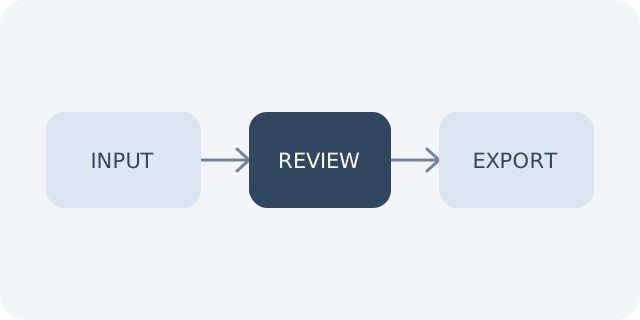
Workflow: geometry is not diagram logic
Hand-authored SVG practice file, not an AI-generated sample. Moving a box does not reconnect its arrows.
Use PictoGIF for static vector generation
Enter text in the SVG workspace, or add one PNG, JPEG or WebP reference up to 20 MiB. An image-only request uses preservation instructions. With a written prompt, those words guide the generation directly.
PictoGIF accepts static native SVG and rejects scripts, external resources and embedded bitmaps. This is a format boundary, not a guarantee of correct geometry, editable lettering or brand accuracy. It does not perform local raster tracing.
Reference image generation requires credits. Get 3 free generations per day. Private results and references expire after 7 days; download the SVG in time.
A simple two-color leaf icon. Use closed vector shapes and a transparent background. Keep the two leaves in separate groups, with no lettering, embedded images, scripts or external resources.
Use this promptWhen a different workflow fits better
For a technical architecture that must keep node relationships editable, preserve a diagram source such as Mermaid. For repeated path editing on a canvas, consider a vector editor workflow. For short raster motion, use GIF rather than expecting a static SVG to animate.
A PNG renamed to .svg remains raster data. A valid SVG that embeds a PNG is still an SVG file, but it does not meet a requirement for editable vector paths. Check the structure, not just the extension.
Frequently asked questions
- Can PictoGIF generate SVG from text without a reference image?
- Yes. Describe the graphic in SVG mode. A reference image is optional; reference access has a separate credit-balance requirement.
- Does an editable SVG include an editing app?
- No. An editable file and an integrated editor are different capabilities. PictoGIF provides the file; use a compatible vector editor for subsequent path or text changes.
- Can I upload an existing SVG for editing?
- PictoGIF SVG input accepts text and one PNG, JPEG or WebP. It does not accept an existing SVG as an editable project.
- Can I generate both SVG and GIF?
- PictoGIF supports separate static SVG and animated GIF outputs. It does not offer animated SVG output or GIF-to-vector conversion.